In this article:
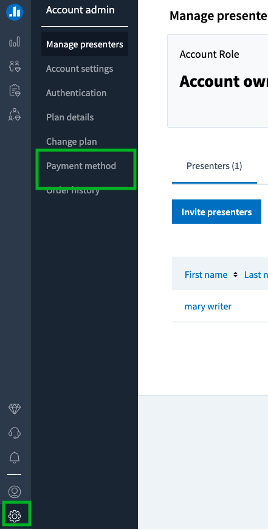
You can change your payment method any time by going to your account management page and selecting the Payment method link from the menu on the left. For your financial security, you can only have one payment method saved to your account at a time.
Helpful tip: Poll Everywhere values your privacy and personal data and does not save previous payment methods or keep a record of how you’ve paid for your subscription.
Adding a credit card
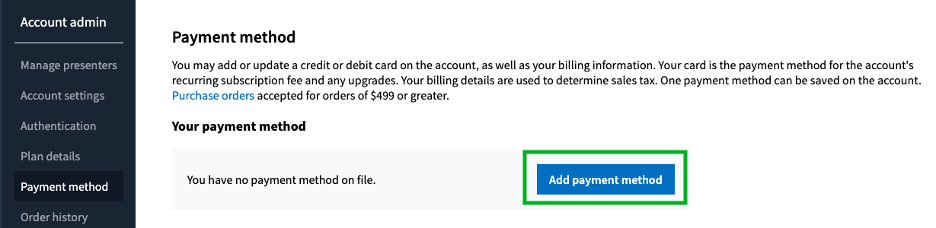
If you do not currently have a payment method on file you can enter one by clicking the Add payment method button, entering your credit card information, and click the Save button.
Updating your credit card information
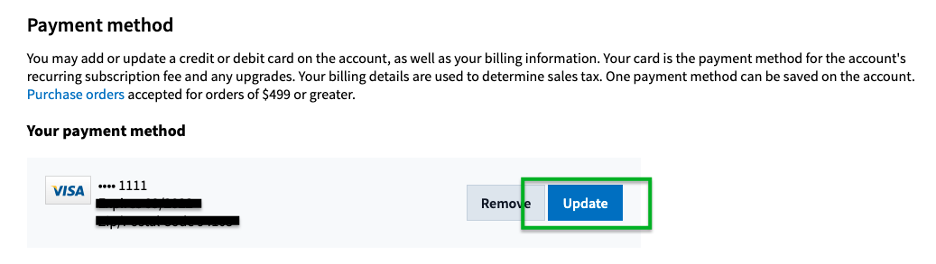
If you want to update your payment information on file, click the Update button. Enter your new credit card information then click the Save button.
Removing credit card information
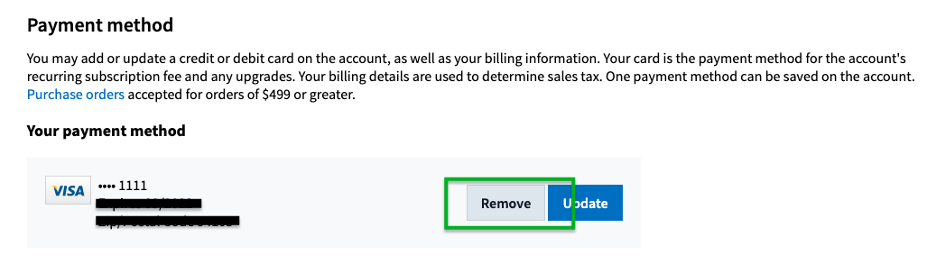
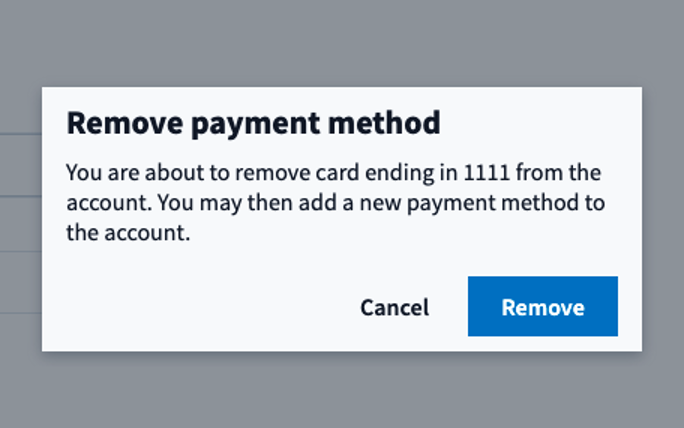
If you have downgraded to a Free account, you can remove your credit card on file without replacing it with another. To do so, click the Remove button. You will be asked to confirm that you want to remove the payment method.
Helpful tip: In order to remove your credit card information, you’ll need to be completely off your paid subscription cycle and on your free plan. It won’t work if you’re still pending downgrade.