
In this article:
With Shared activities, you can run all Report types across multiple presenters.
Creating a Report from the Reports page
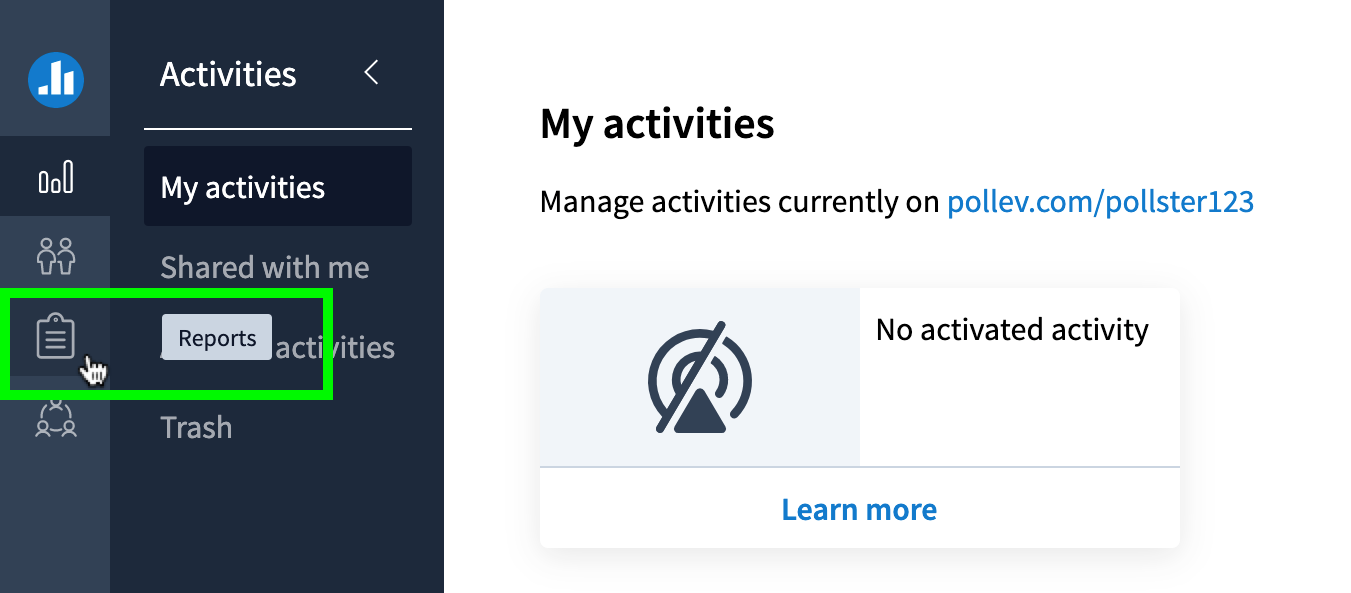
Step 1: Click the Reports icon on the left-hand side of your screen.
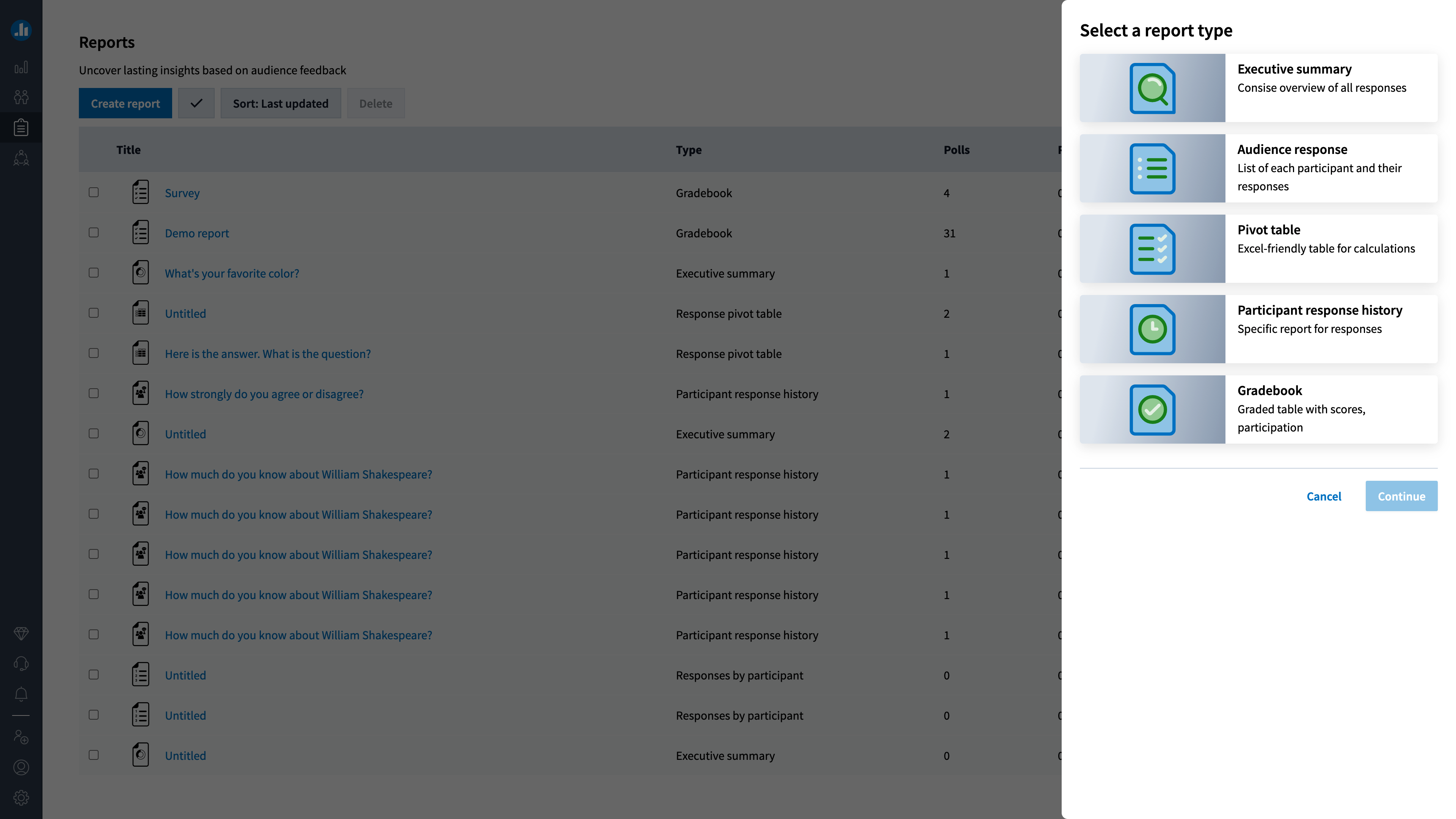
Step 2: Click Create report.

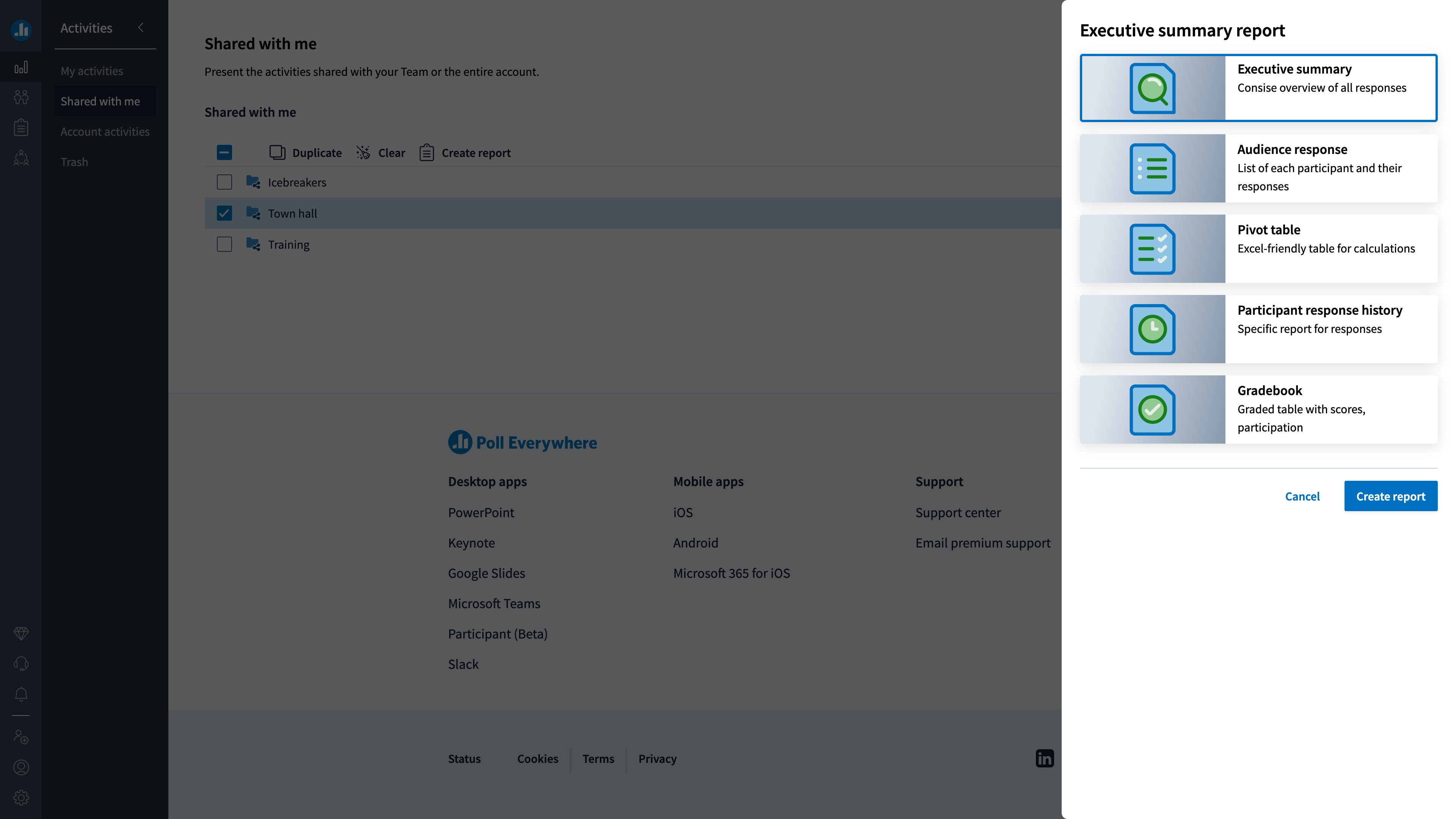
Step 3: On the right-hand side of your screen, select the type of report and click Continue.
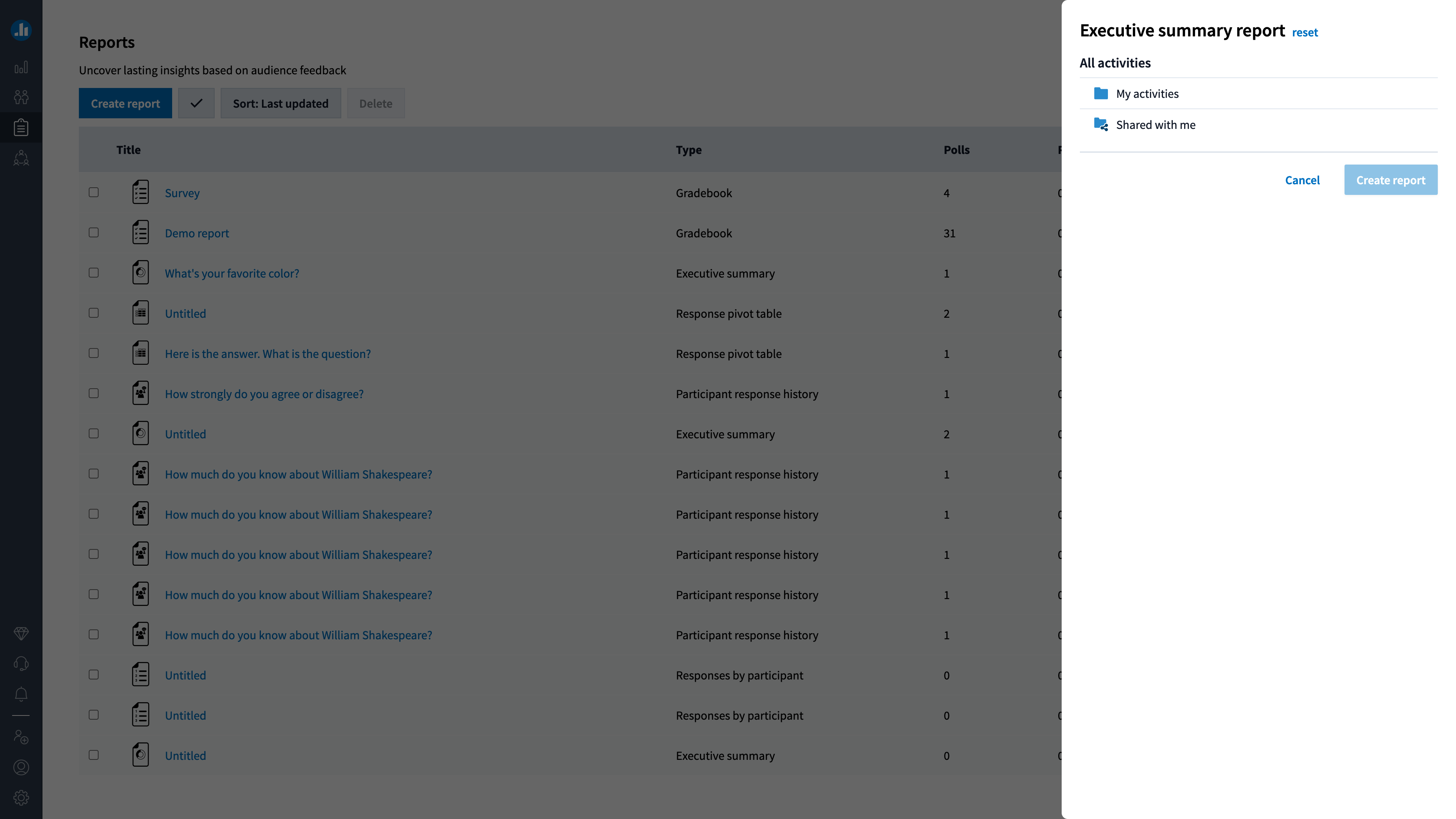
Step 4: Select activities that you have created (My activities) or activities that were shared with you (Shared activities). Reports may only be for activities you created or ones shared with you. It is not currently possible to report on a mix of both.
Step 5: Select the Activities and Folders to report on and click Create report.

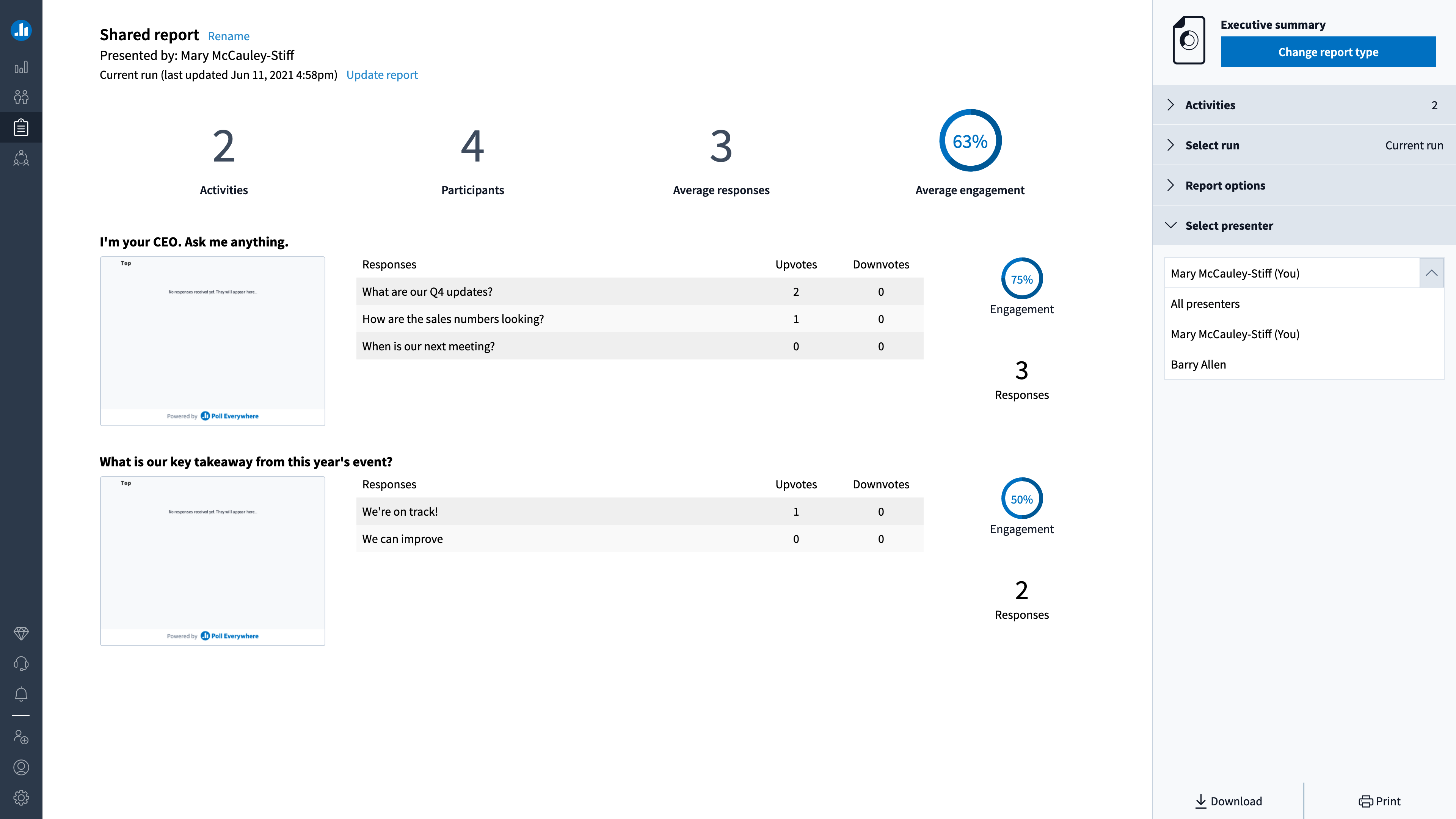
After creating the report, we will show the responses for the currently logged-in presenter by default. Then, you can click the Select presenter menu to see the responses for another presenter for a Shared activity or see all responses from all presenters. You may only select either one presenter or all, not a subset of presenters.
Creating a Report from the Shared with me page
You can also create a report from your Shared with me page.
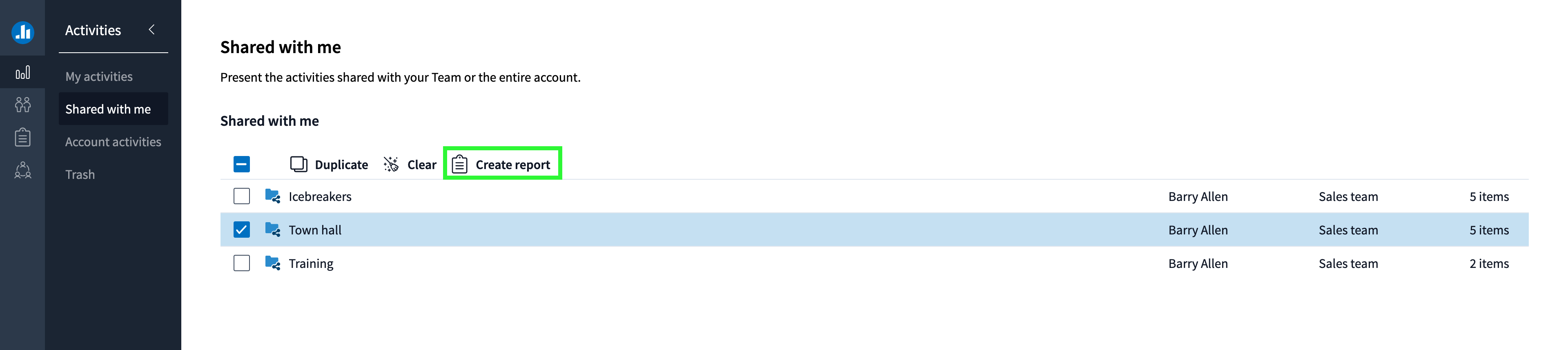
Step 1: Click Activities in your left-side navigation, followed by Shared with me.

Step 2: Select the Activities and Folders you want to report on. Then, click Create report at the top of page.
Step 3: Select the report type on the right-hand side of your screen and click Create report.
Note: While reporting on multiple presenters is supported, we recommend using our Data Export feature to run reports for multiple presenters on your account. These reports are designed for individual reporting. Talk to your Customer Success Manager for more details.