In this article:
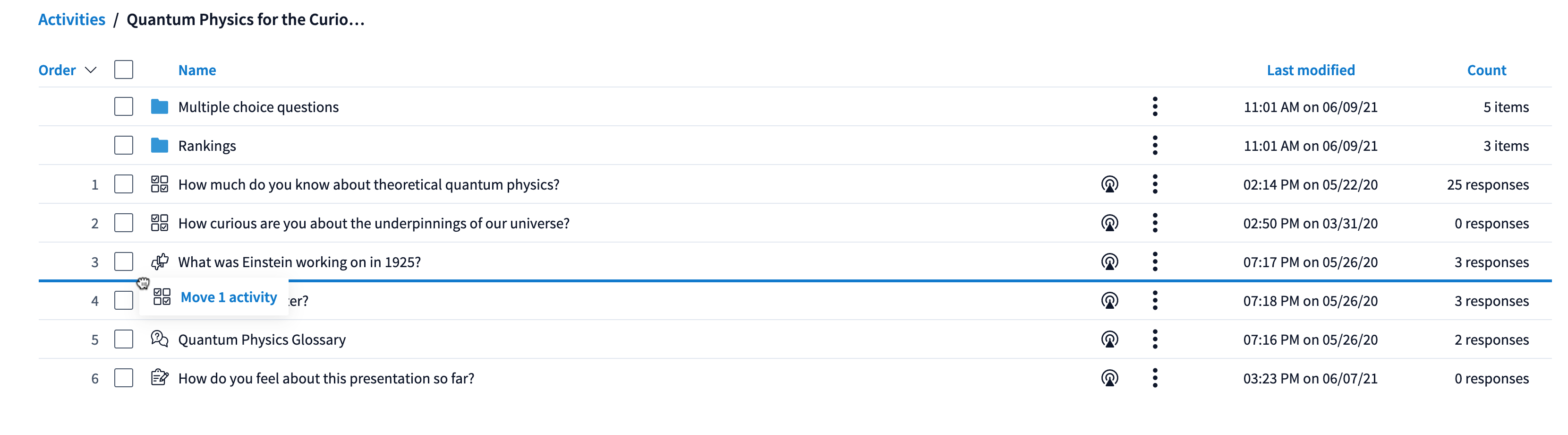
Poll Everywhere allows you to organize your activities and folders to best suit your workflow and style. You can move the items on your Activities page either by dragging and dropping their title bars, or selecting their checkboxes in the list and using the Move action button.
Drag and drop
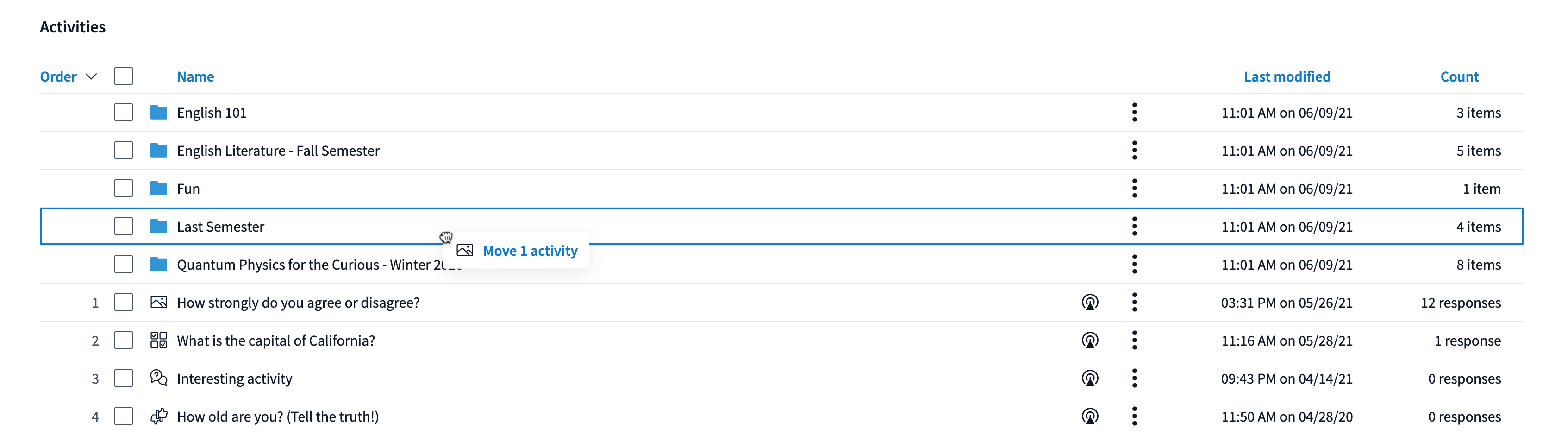
If you are planning on moving one Activity or Folder at a time, you can drop and drop it into a Folder by dragging and dropping. Click on the item in your list and drop it into the Folder it belongs to.
Using the Move action
To move up to 400 items at once, use the Move action. You can also create Folders along the way.
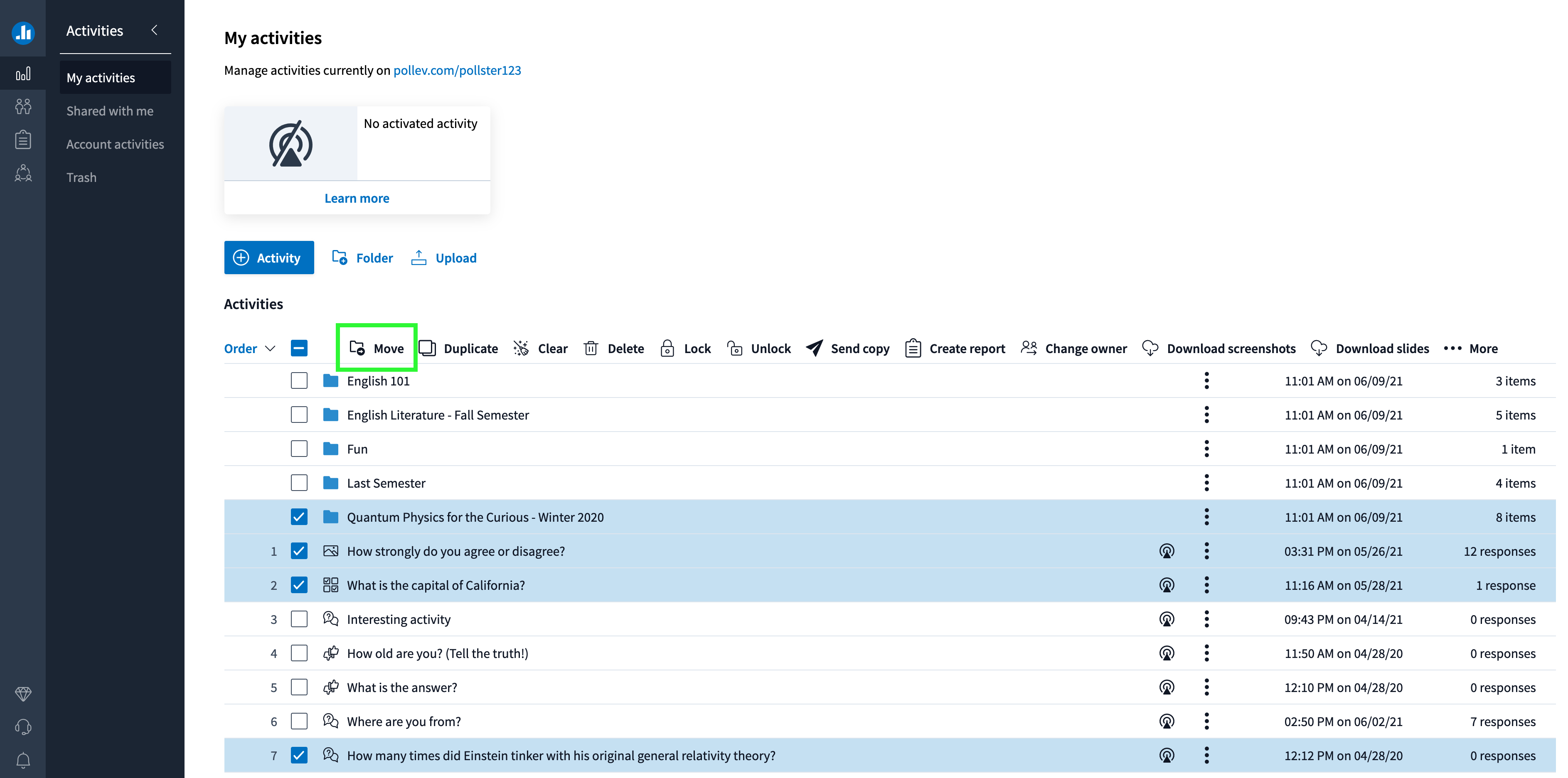
Step 1: Click on the checkboxes near Activity and Folder titles. Once you click a checkbox, the actions menu will appear at the top of your list. Click on Move to open a screen on the right-hand side of your Activities page.
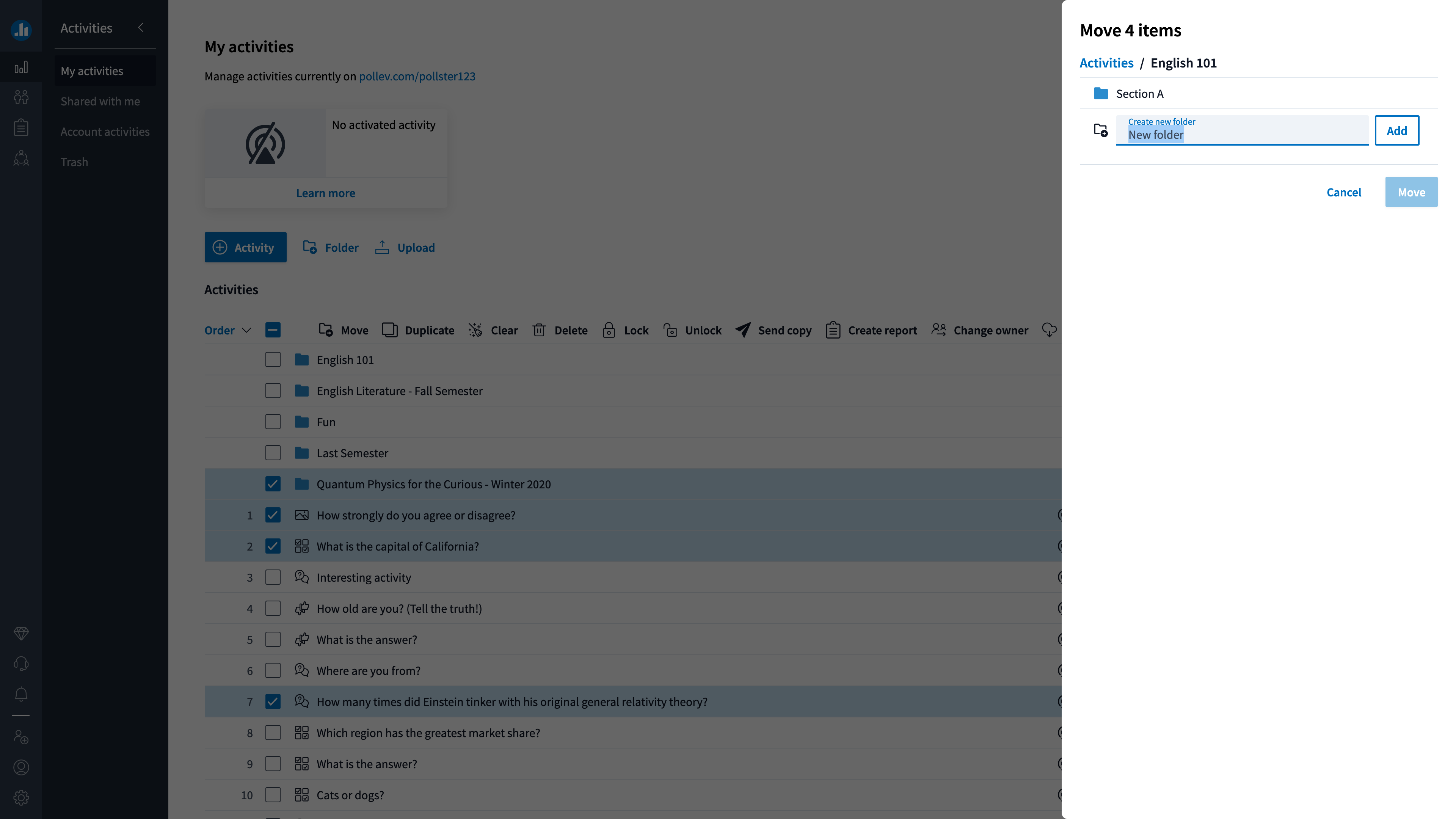
Step 2: Select the existing Folder you would like to move those items into, or create a new Folder.
For more information on working with Folders, check out the article on organizing Activities into Folders.
Reordering activities
When you present Poll Everywhere activities from your browser, their order matters. As soon as you advance to the next activity, it will appear based on the order you define.
To rearrange your activities according to your presentation order, start by clicking on the Order column.
Step 1: When your activities are sorted in ascending order (starting at 1), you can drag and drop them to change their position. To confirm that your activities can be reordered, look for the unique icon to the left of their titles.
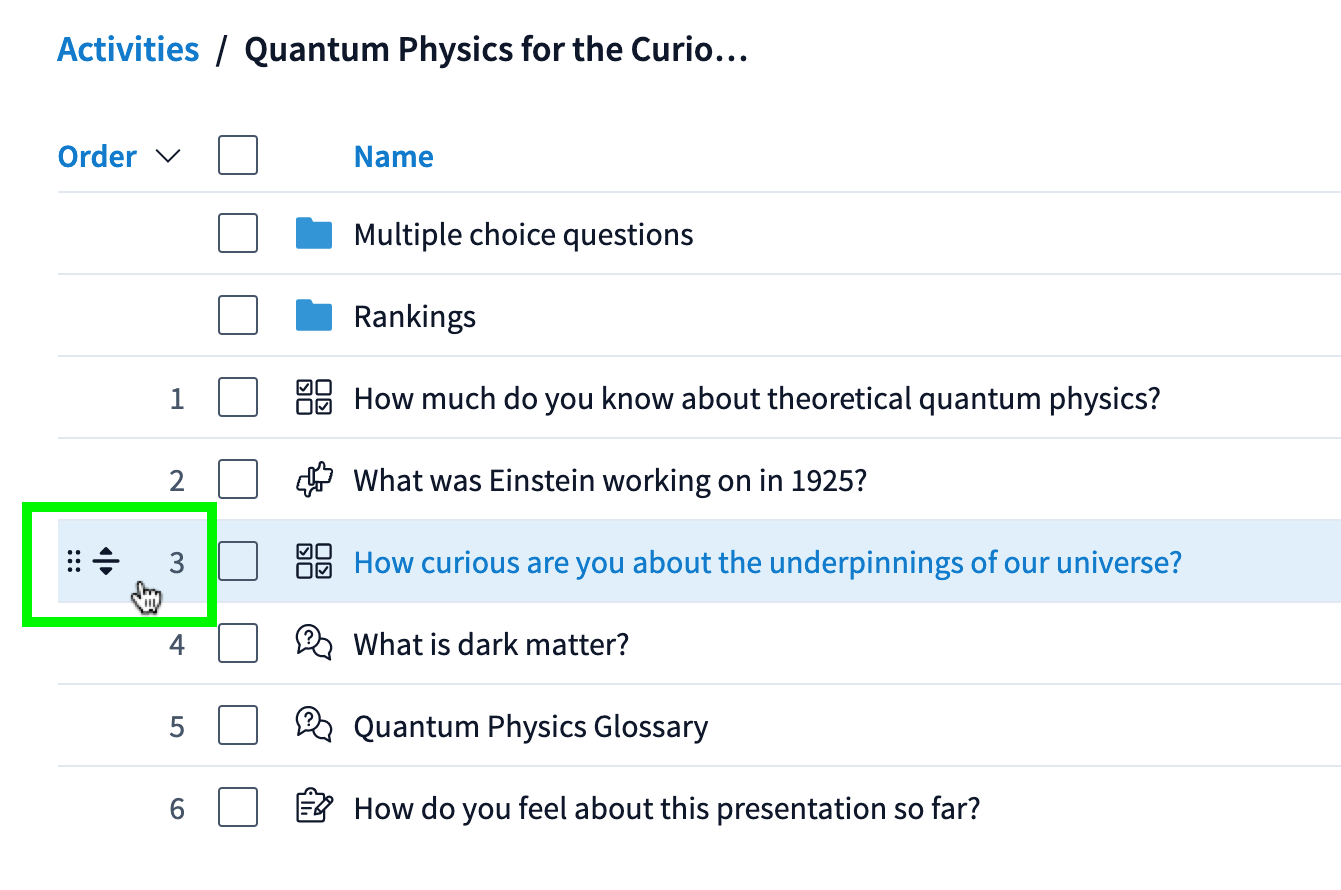
Note: Activities can only be rearranged when they are sorted in ascending Order. Folders cannot be rearranged — only sorted by columns.
Step 2: Use the blue line to help you choose your activity's new position.