In this article:
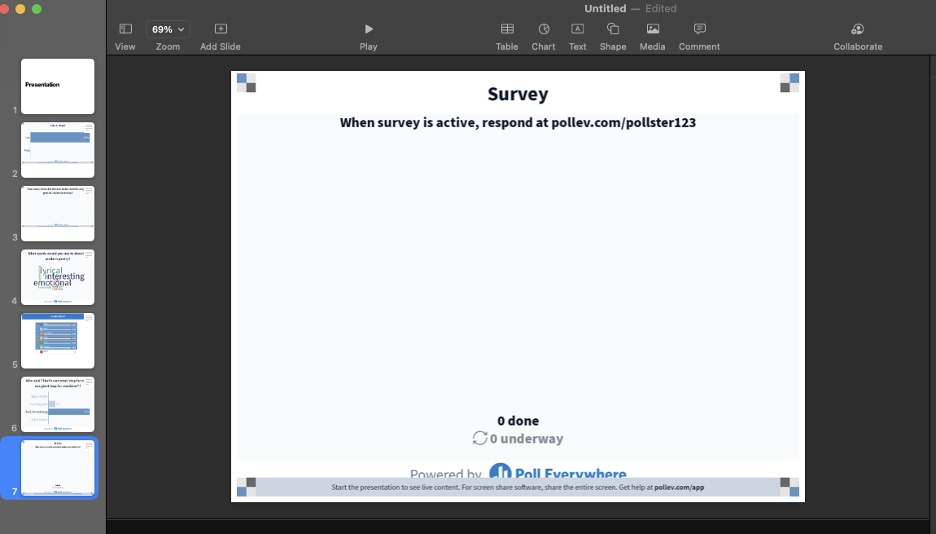
With Poll Everywhere for MacOS you can insert screenshots of activities directly into your presentation. This is useful for including responses from a previous session, sharing your deck (including audience responses) with others, etc.
Whether it's simple activities like Multiple choice and Word cloud, to Surveys and even Competitions, a few clicks will get you up and running.
Inserting screenshots
The following steps will walk you through how to insert an activity screenshot into your presentation.
Step 1: Click the Poll Everywhere icon in the dock to bring the app to the forefront so the app name appears in the menu bar at the top of the screen.
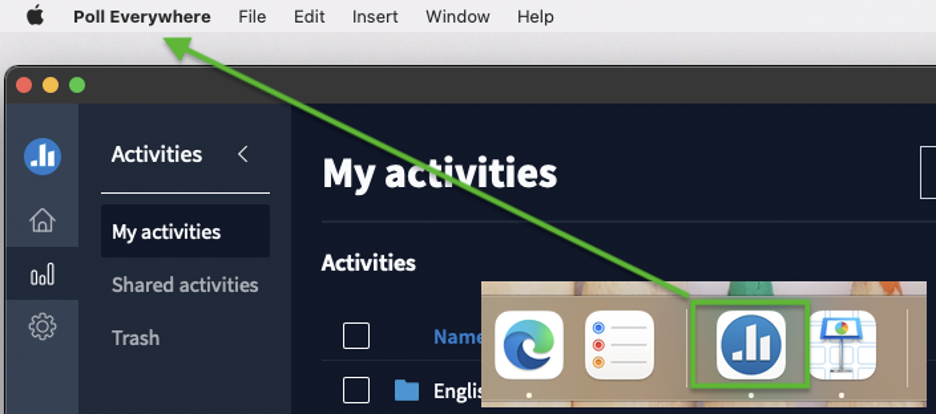
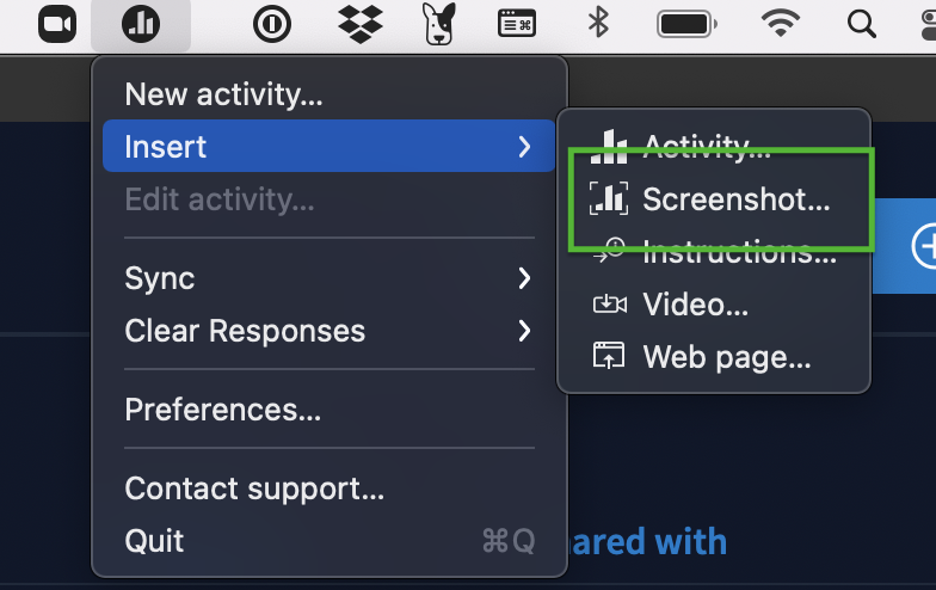
Step 2: Select Poll Everywhere > Insert > Screenshot...
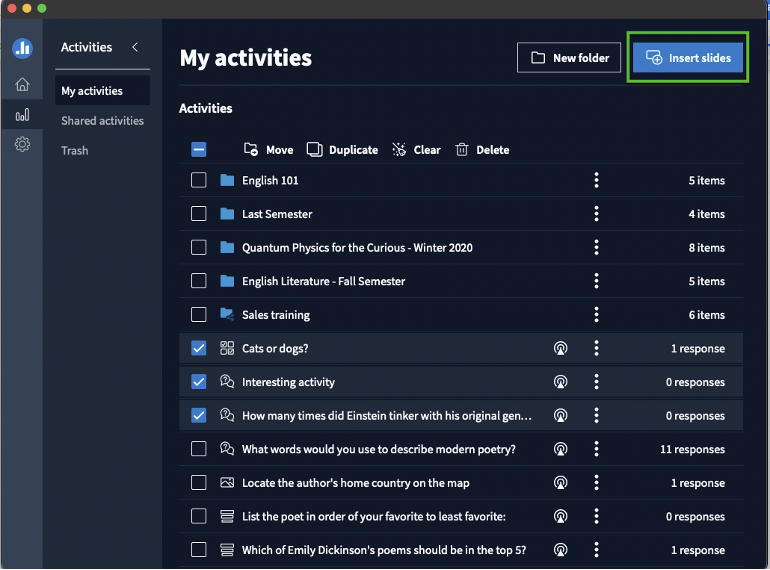
Step 3: In the Poll Everywhere app window, select the activities you want to insert screenshots of by clicking their checkboxes. Then tap the Insert slides button in the top right.
Slides with screenshots of your activities appear in the deck. Each screenshot has its own slide.
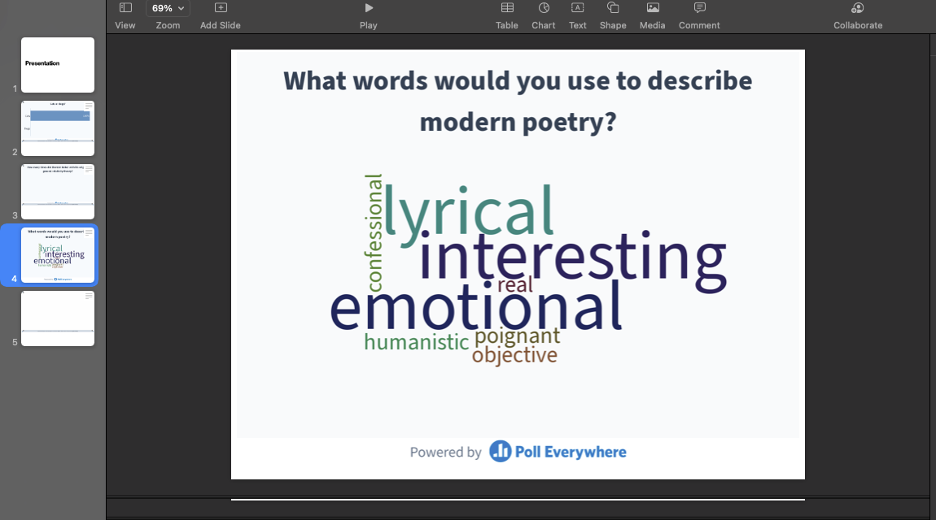
Screenshot slides appear a bit different than activity slides. Unlike activity slides, screenshots won’t have the blue marks in the corners. The notes section, likewise, will contain the title of the activity, but will not have any link.
Helpful tip: You can also download screenshots of your activities from the web. Check out the Download a screenshot article for instructions.
More useful tips
Be logged in
Make sure the app is running, and that you are logged in as the activity owner.
Tips on Competition screenshots
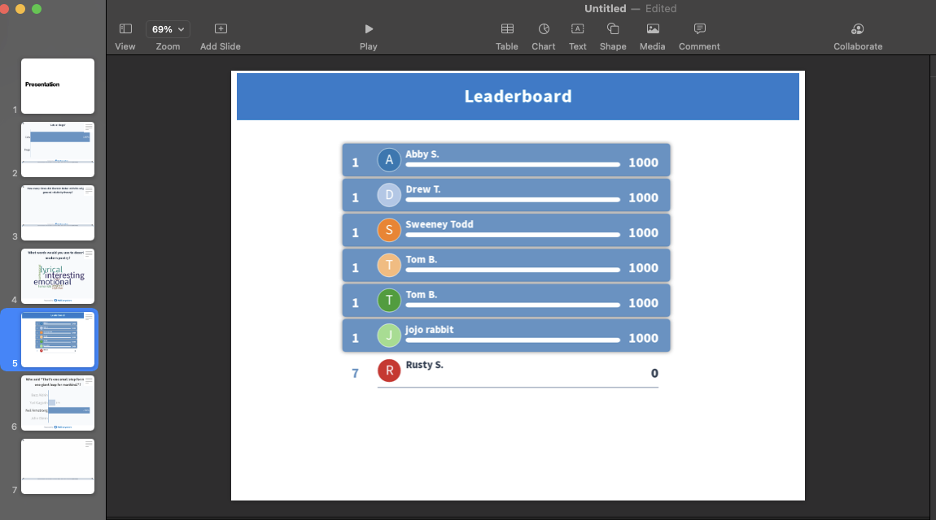
When inserting screenshots for Competitions, the app will insert a screenshot of the final leaderboard and the response slide of each question.
Tips on Survey screenshots
If you insert the screenshot of a Survey that has received responses, then the screenshot will show audience members progress through the Survey at the time the screenshot was taken. If there are no responses to the Survey at the time you insert the screenshot, then it will show only the Survey title and instructions to respond.