In this article:
- Accessing the app
- Creating activities
- Presenting activities
- Presenter interface
- Participant interface
The Poll Everywhere for Webex app allows Poll Everywhere presenters to share engaging activities and interactive questions directly within their Webex Meetings. A Poll Everywhere account is required to use the Poll Everywhere for Webex app. There are free Poll Everywhere accounts available which include full functionality of the app.
This guide will cover the following:
- Accessing the app
- Creating activities
- Presenting activities
- Presenter interface
- Participant interface
Accessing the app
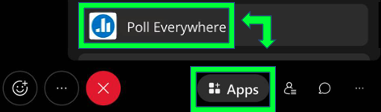
Step 1: To access the Poll Everywhere for Webex app, start the Webex meeting. Click the Apps button in the bottom right corner and select Poll Everywhere.
Step 2: If you are a new presenter, sign up for a free account. If you already have a Poll Everywhere account, log in.
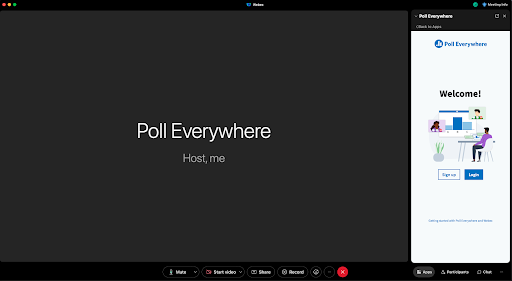
New presenters signing up will be taken through a brief tutorial on the Poll Everywhere client that provides an overview of how to create and activate an activity.
Once existing presenters log in and new presenters complete the tutorial, both will see the in-app screen shown below in the Webex Meeting. To begin creating activities, select Choose an activity to activate.
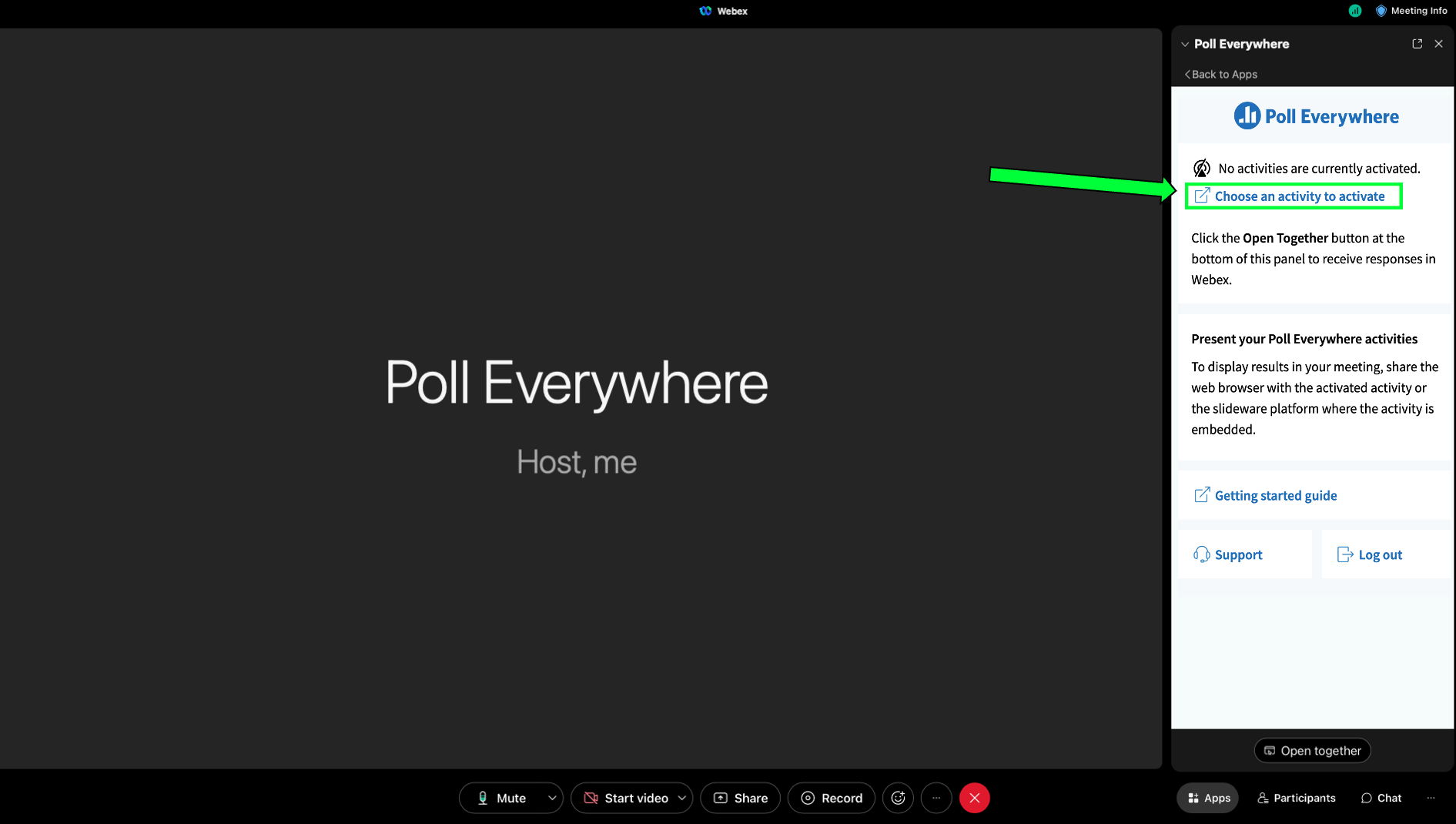
This will open a new window and launch the presenter to their My activities page. This page is also accessible via link: www.polleverywhere.com/activities.
Creating activities
A Poll Everywhere activity is a single question or prompt you pose to your audience.
Step 1: To create an activity, select the Activity button on your Activities page.

Step 2: Select the activity type you would like to create from the activity creator tool. You can choose from the top activities (Multiple choice, Word cloud, Q&A, etc.) or find more templates when you hit the More button on the right.
Step 3: Once the activity type is chosen, simply enter the question or prompt.
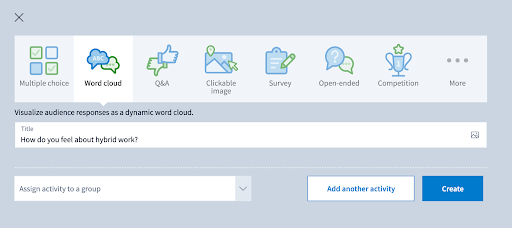
Step 4: Click the Create button to save it to your account. If you’re creating multiple activities, click Add another activity and this will save your activity and allow you to create more.
Step 5: All created activities can be found on the My Activities page.
Presenting activities
There are two requirements that must be met to present an activity and receive responses in the Poll Everywhere for Webex app.
- The activity must be activated.
- The Open Together button must be selected.
This guide will walk through fulfilling these requirements.
- The activity must be activated.
There are a few ways to activate an activity. The easiest way to activate an activity is through the Activities page by clicking the Activate icon located to the right side of the activity’s title bar. Once clicked, the presenter will see the icon turn green on the Activities page.
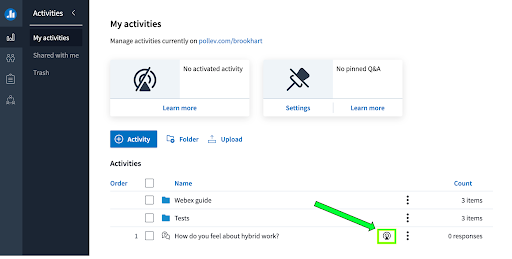
Another way to activate an activity is by displaying it in Present mode. You can do this by selecting an activity from the Activities page by clicking the title.
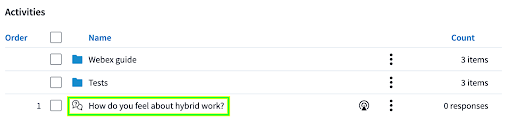
This will take you to the Activity slide. Click Present on the top right to enter Present mode, which will activate the activity. You can also click the Activate button.

Important note: a presenter can only have one activated activity at a time. This is how the presenter specifies which activity is accepting responses at that moment in time.
- The Open Together button must be selected.
Once the activity is activated, the final required step is to select the Open Together button at the bottom of the app panel.

Presenter interface
The currently activated activity will be displayed for the presenter to see on the right panel of the Webex meeting.
What the Presenter sees:
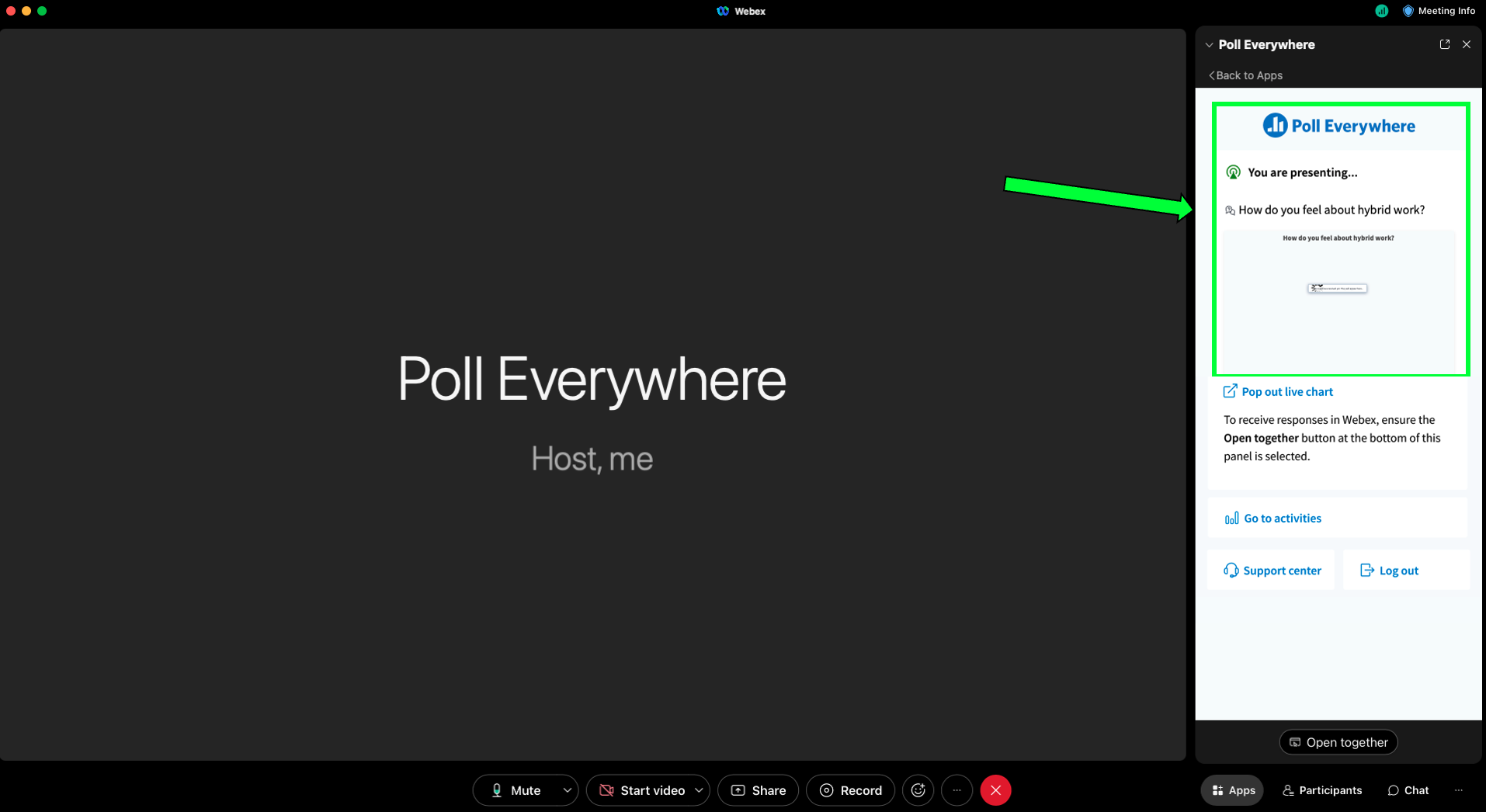
As participants submit responses, the presenter will see the responses populate on the side panel.
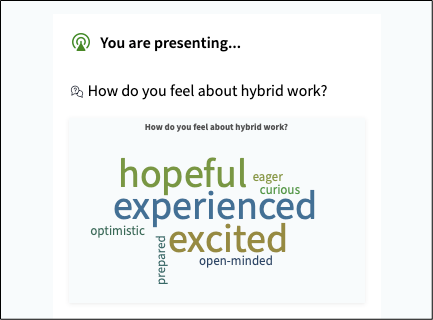
To share responses with the participants, select Share on Webex and share your screen with the browser window or slideware platform where your activity is embedded.
Participant interface
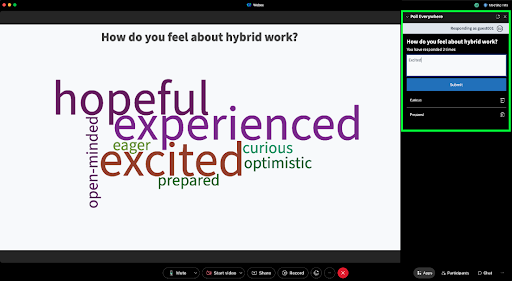
Participants respond to your activities directly in Webex Meetings — no Poll Everywhere account or new tabs required. Participants will immediately see and be able to respond to the presenter’s currently activated activity in the Webex side panel. Regardless of the activity type and method of input (clicking or typing), participants can submit their response seamlessly on the right panel.
What participants see: