
A feature of reporting is the ability to download a list of participants. Downloading participant data can provide you with valuable insight into participants’ interactions. It’s also a handy way to generate a spreadsheet that can be used to mass email registered participants. Participant lists are downloaded as a .CSV file
Helpful tip: CSV stands for Comma Separated Value. A CSV file is a text file that stores tabular data in plain text. CSV files can be opened up and edited in a spreadsheet application such as Excel.
Follow these steps to download your file:
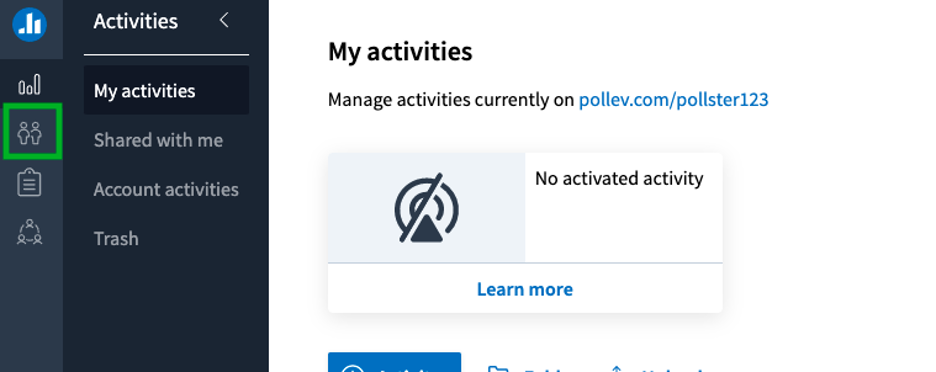
Step 1: Log in to your account and click the Participants icon on the left navigation bar or go to https://www.polleverywhere.com/participants.
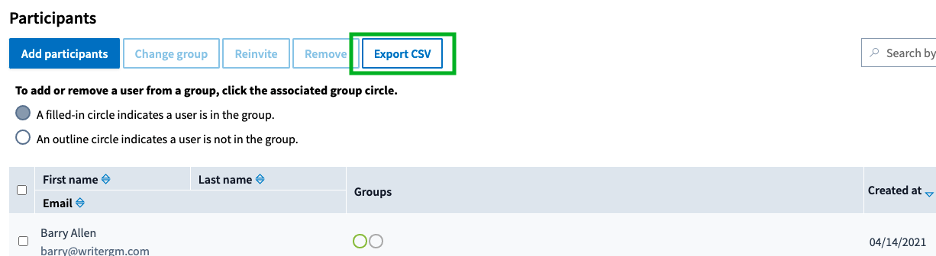
Step 2: Select the Participant groups you want to include from the circles on the right side (if you wish to download all registered participants by default, skip this step and go to step 3).

Step 3: Click Export CSV.
Once the download is complete, you can open the CSV file in a spreadsheet application such as Excel.
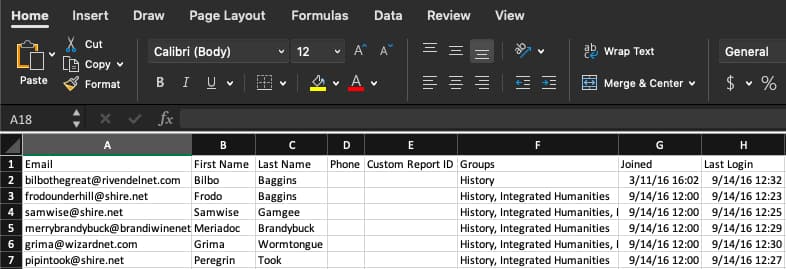
The file will contain the following data:
- First Name
- Last Name
- Phone (last 4 digits)
- Custom Report ID (student ID field)
- Groups (a comma separated list of all participant groups each participant is in displayed within the same column in the spreadsheet)
- Joined (the date a participant registered)
- Last Login date
Helpful tip: This export is available to the account owner and account administrators to export a list of all of the registered participants on the entire account. Learn more on account roles.