
In this article:
- Download a screenshot of an individual activity
- Download a screenshot of multiple activities
- Download a screenshot of a Survey or Competition
If a presenter needs to present the results of their activity without being connected to the internet, or if they would like static images instead of live results, they can generate a screenshot of the activity.
Download a screenshot of an individual activity
To download a screenshot for an individual activity, please follow the steps below:
Step 1: On the activities page, click on the activity title.
Step 2: Click on the Response history button in the lower right corner.
Step 3: On the upper right hand corner, click Download screenshot button.
Step 4: A screenshot will download directly onto the computer.

Helpful tip: Please note that it is not currently possible to download screenshots of a Leaderboard from a Competition. We recommend using third party screenshot applications to capture the desired infomation.
Download a screenshot of multiple activities
If you prefer to download multiple screenshots at a time, please follow the steps below:
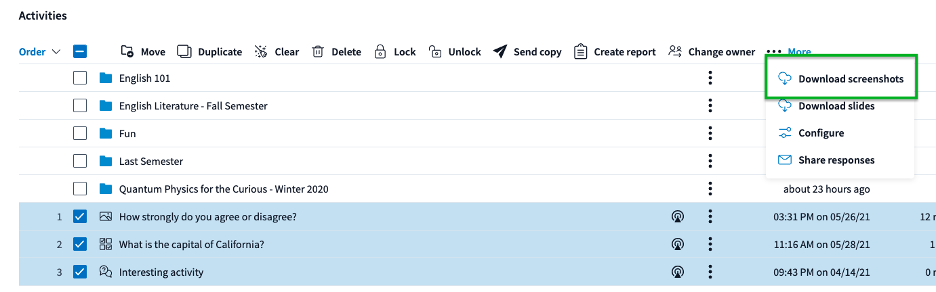
Step 1: Select the checkboxes next to the activities.
Step 2: Click the Download screenshots button at the top of the page.
Step 3: The presenter will receive an email with a download link.
Step 4: A .zip file with screenshots of the selected activities will download to extract.
Step 5: Open the folder to access all of the requested downloaded screenshots.
Helpful tip: Presenter can use this method to create screenshots for up to 400 activities at a time.
Download a screenshot of a Survey or Competition
You can also download screenshots of the individual questions within a Survey or Competition activity. To download the screenshots of the individual questions, follow these steps:
Step 1: Select the checkbox next to the Survey or Competition activity.
Step 2: Click the More button and then click on Download screenshots button at the top of the page.
Step 3: Presenter will receive an email with a download link for a .zip file.
Step 4: Open the file to view screenshots.
