
In this article:
The branded response page allows you to personalize the branding of your unique PollEv.com page. You can edit the color of the various page elements, change the text on the wait screen, and even replace the Poll Everywhere logo on the wait screen with your own.
Step 1: Click on the Profile icon to open your settings. Click the Branded response page tab.
Note: This feature is only available for certain paid plans. If you don't see the branded response page tab, your plan does not have this feature enabled.
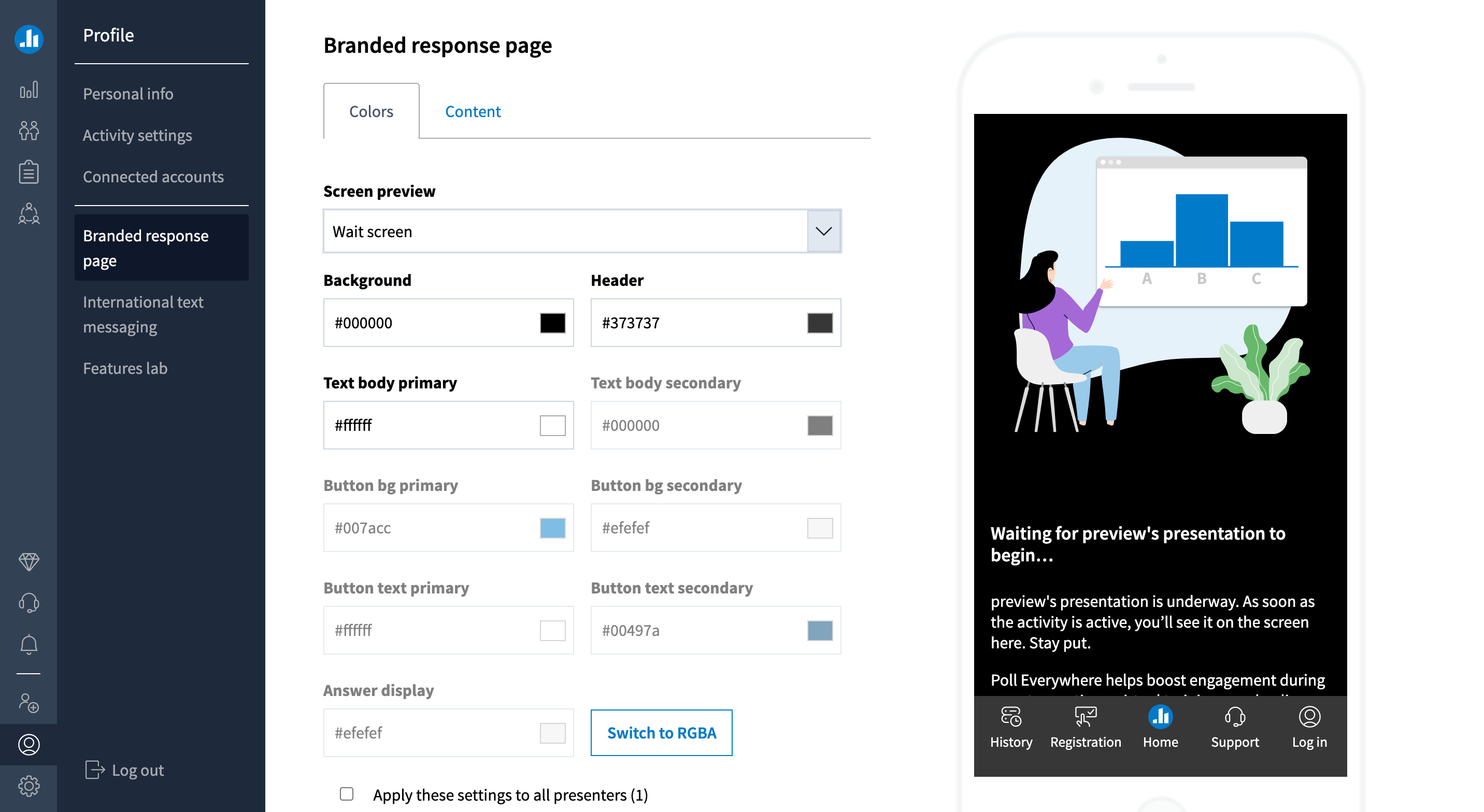
The Branded response page has two tabs: Colors and Content.
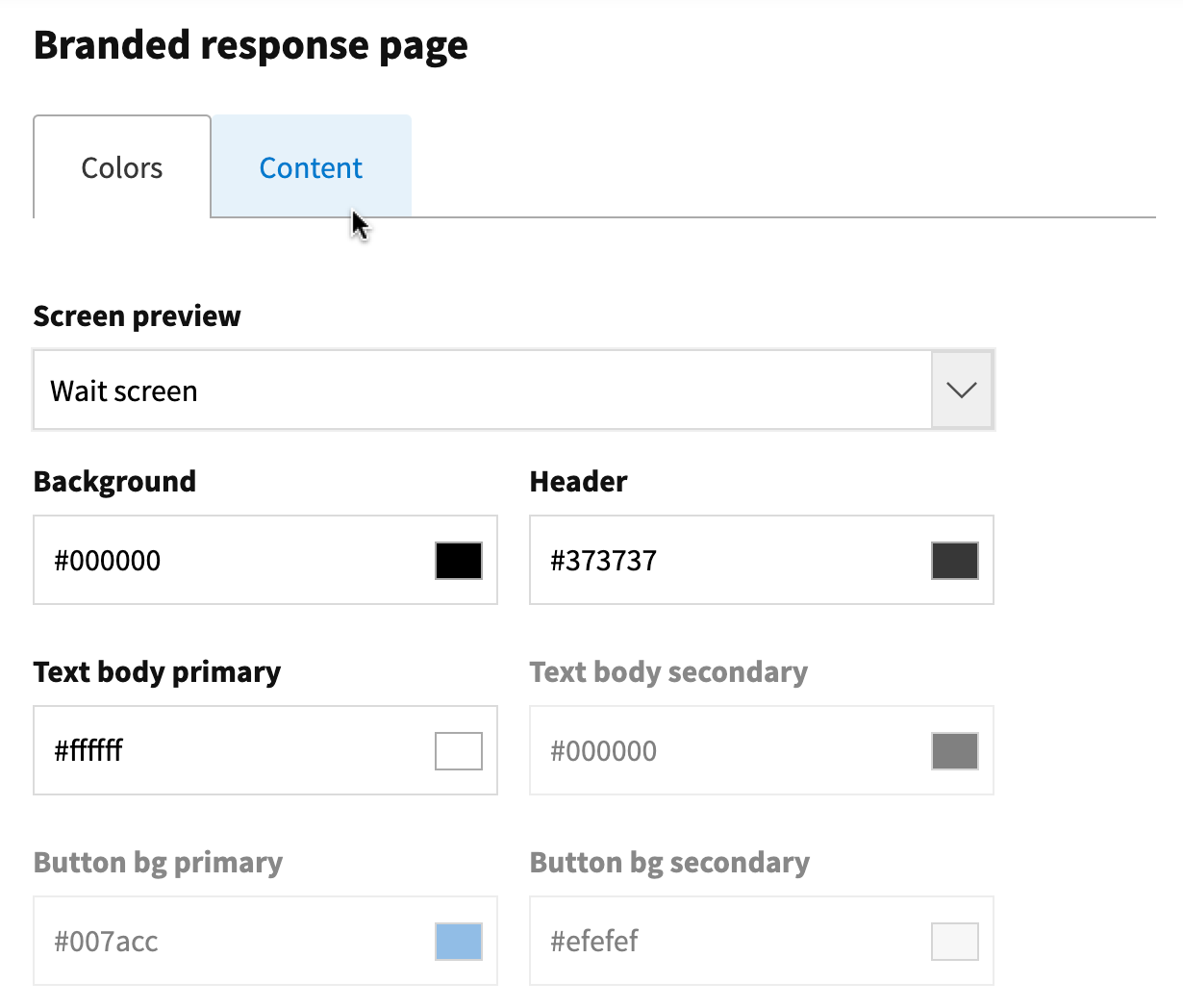
Colors tab
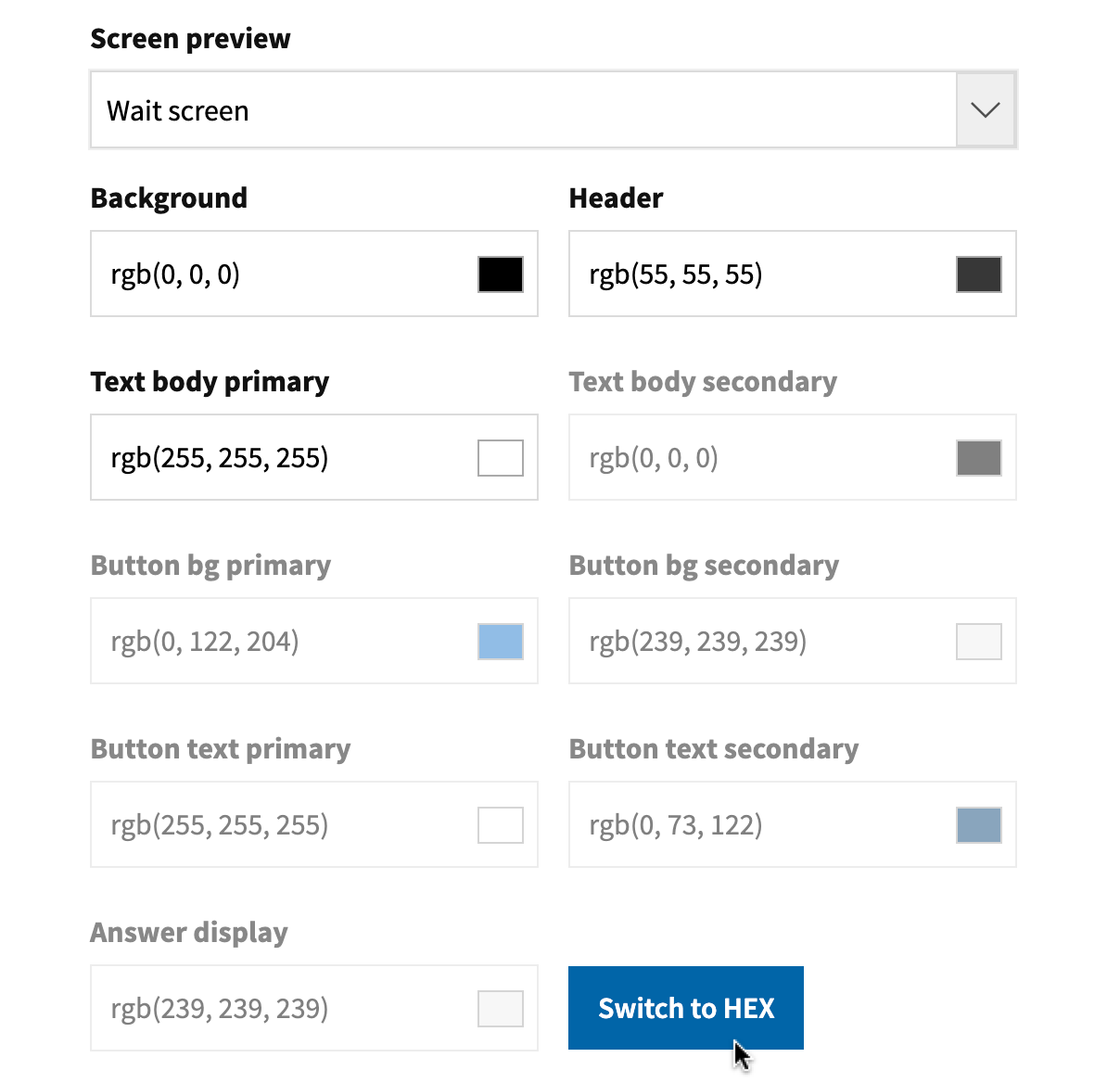
The colors tab allows you to customize many elements of your response page.
Helpful Tip: If a section is grayed out, that means that area of the selected screen is not available for customization. For example, if the Wait screen is selected in the Screen preview, the button customization areas are grayed out because the wait screen doesn’t have any buttons.
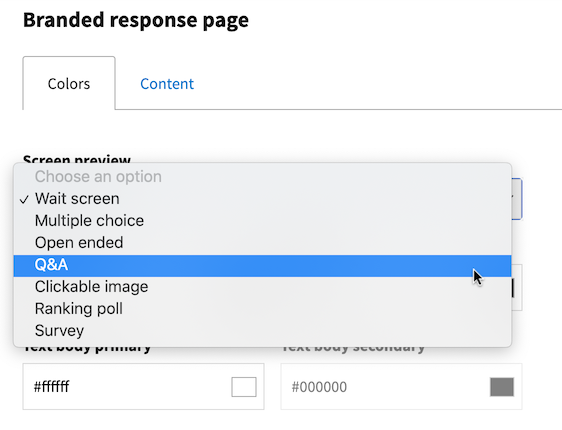
Screen preview
The screen preview dropdown list allows you to specify which screen you want to customize. You can select the wait screen or any of the activity types (e.g. Multiple choice, Q&A, etc.)
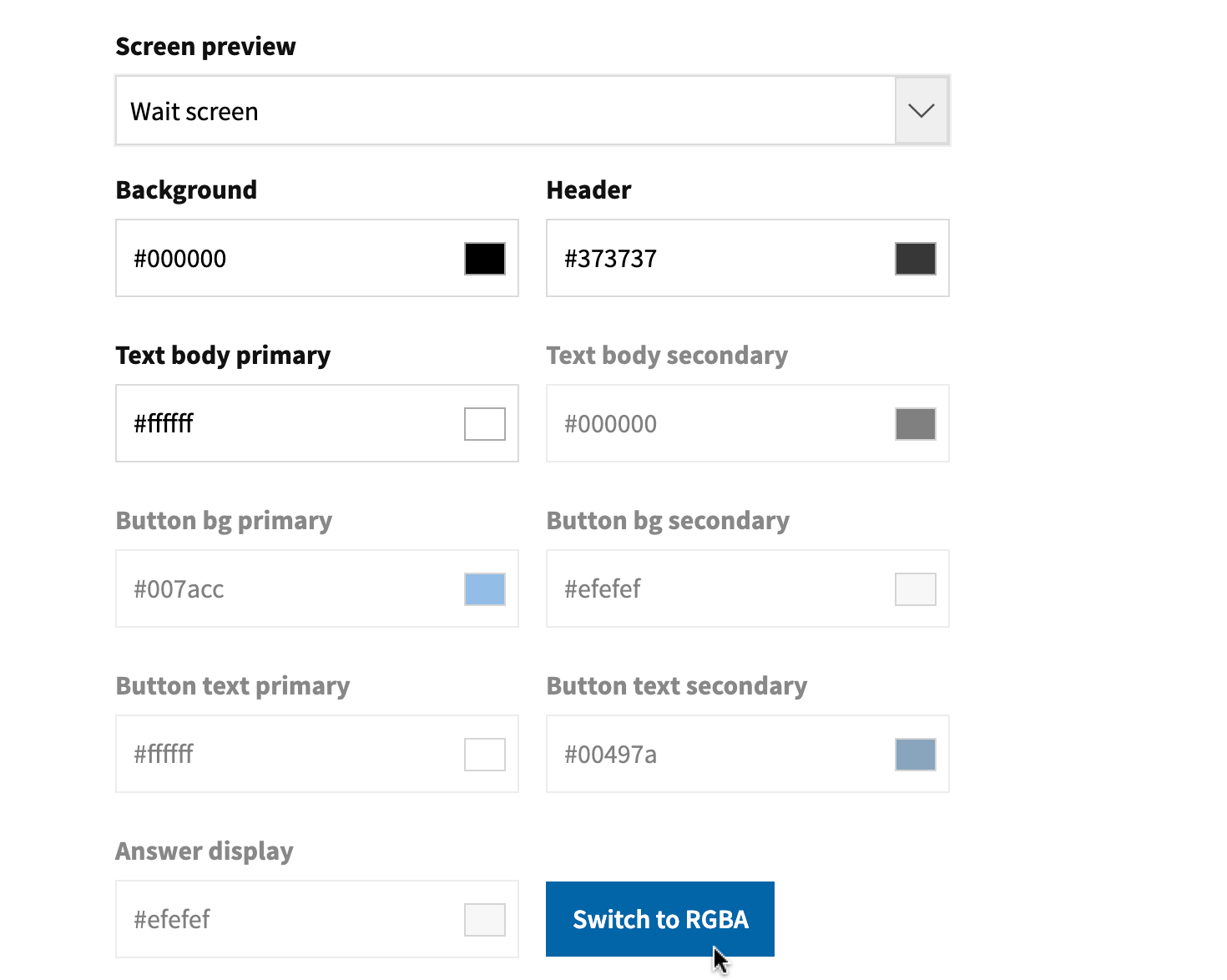
Switch to RGBA/HEX
Near the bottom of the page is a button which lets you choose which color code format you want to use.
Reset to default
Always handy, the Reset to default button near the bottom of the page will revert all your color selections back to the Poll Everywhere defaults.
Content tab
The content tab allows you to upload a custom logo, change the wait screen title, and even customize the content of the description.
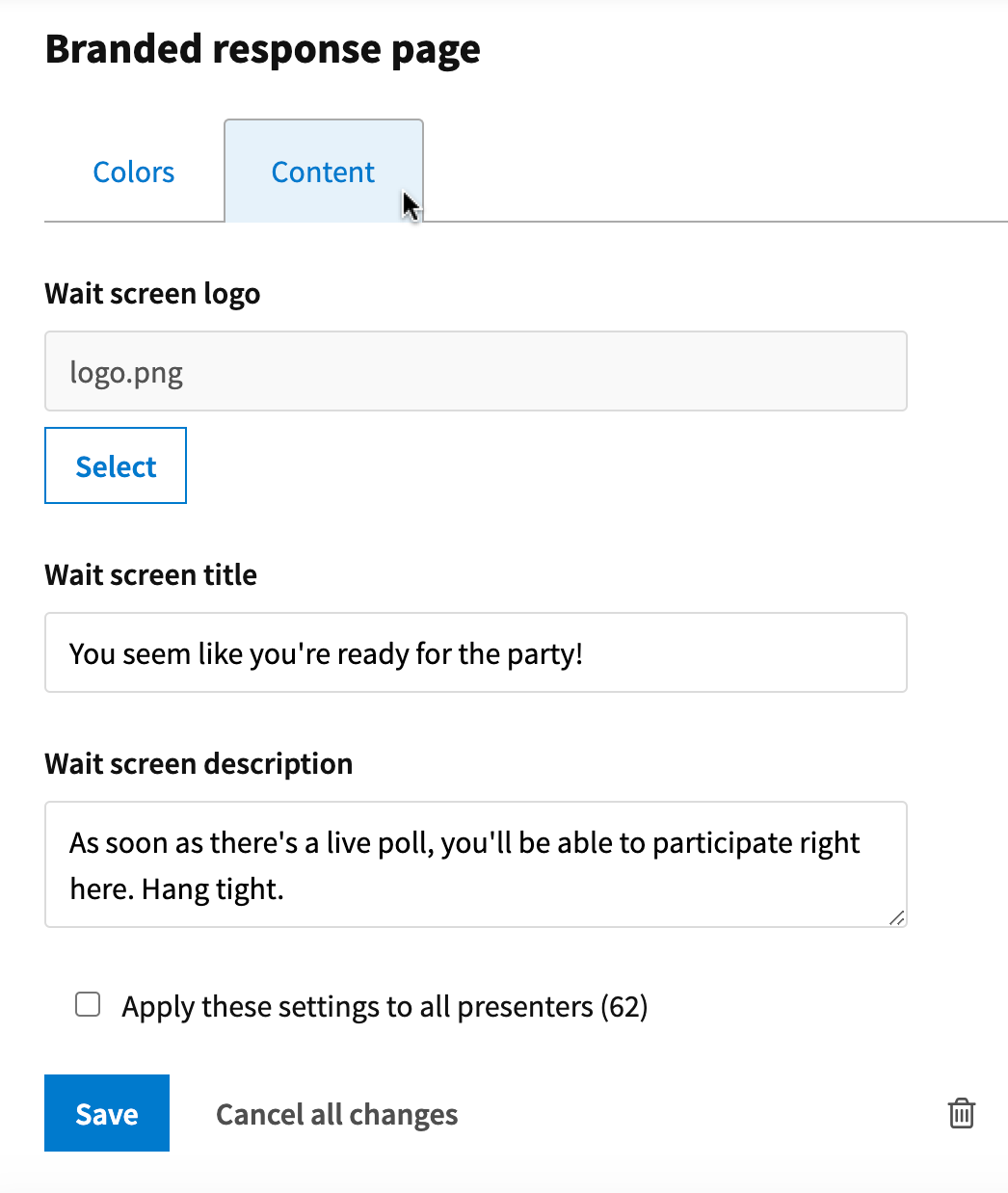
Note: Changing the logo here only affects the wait screen, not your activities.
Applying changes account-wide
As the account owner or admin, you will see a setting to apply to all presenters on the account at the bottom of both the Colors and Content tabs. With that selected, the changes you make on this screen will become the new default for everyone on the account. Individual presenters can still customize their own preferences.