
In this article:
As a presenter, you may want to restrict who can join your session and submit their responses. The presenter can allow participants to access by either allowing everyone or registered participants. They can also choose how to identify the participants by allowing them the option to enter a screen name or be anonymous.
Note: Registered participants is a premium feature that can be purchased on our Pricing page here.
Restrictions on an individual activity
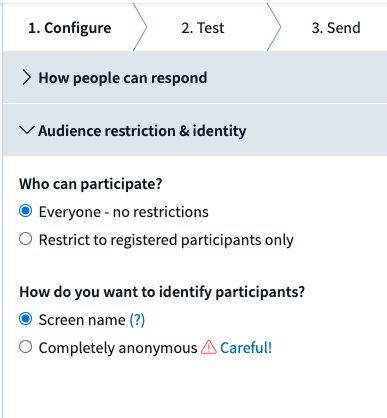
To configure the audience restriction & identity within an activity, the presenter will need to open the individual activity, click the Configure tab in the menu on the right-hand side of the screen, expand the Audience restriction & identity, and select the appropriate options.
Account admin settings
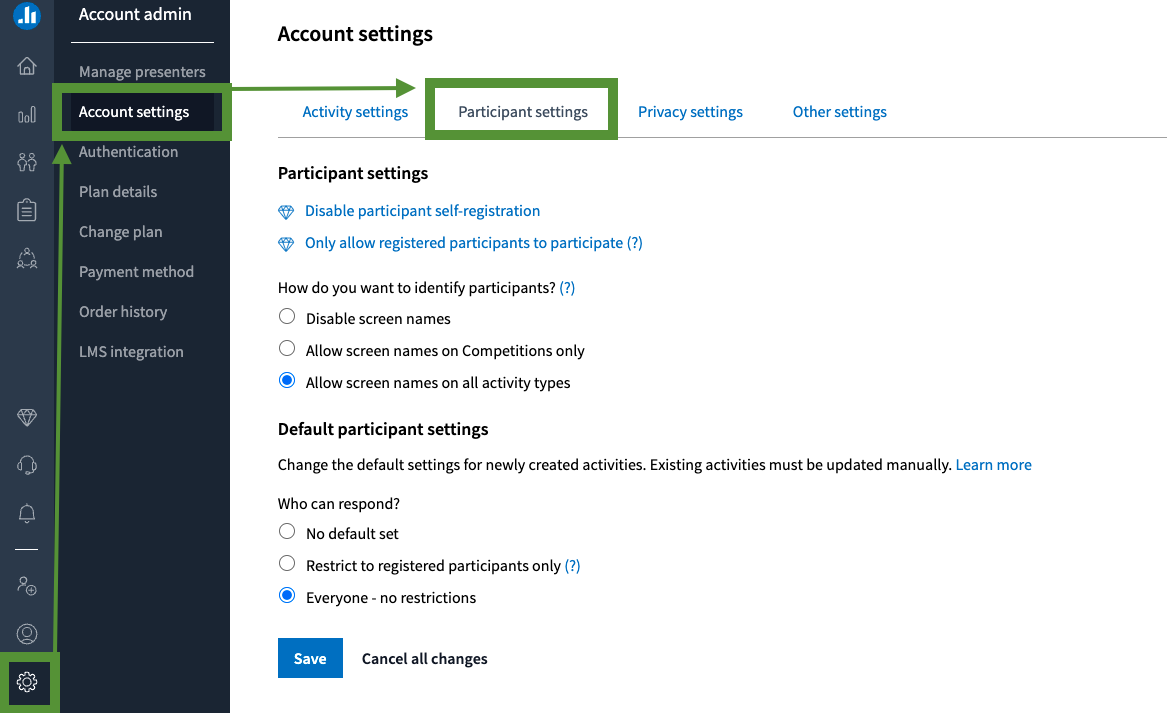
If the admins would like to set the audience restriction & identity for the account, they can set the following settings:
- Default participant settings
- Participants identification
- Participant self-registration
- Registered participants restriction
The admins can access these settings by clicking on the Account admin icon in the bottom left corner of the navigation bar, selecting Account settings, and then clicking on Participant settings to configure.
Note: If a presenter would like to bulk configure the audience restriction, then review the steps with Configure multiple activities.