In this article:
- Template activity
- Activation time
- Participant screen names
- Correct response visibility
- Participant counter
- Language selection
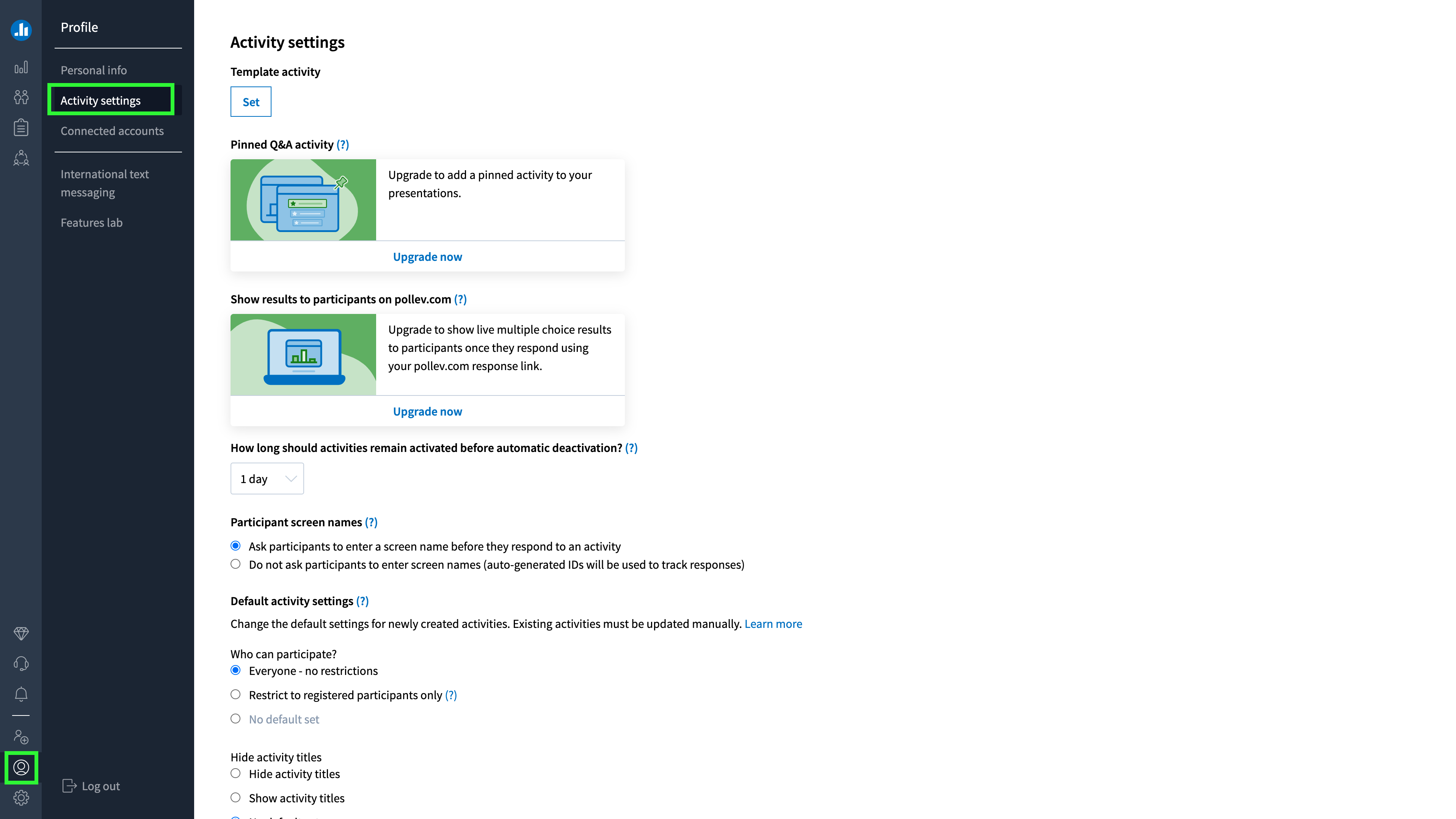
The Activity settings tab of the Profile page gives you control over several handy features. Through this portal you can do things like create a template, determine how long you want activities to stay active, and even change the language of activity instructions. The full list and explanations follow.
Template activity
If you find yourself using the same visual settings for many activities, you might consider creating a template activity. Check out the Template activity article for instructions on setting a template for all presenters on your account.
Activation time
By default, questions will remain active for one day after you activate them unless you deactivate the poll manually. You can adjust this using the drop down menu on the Activity settings page. Visit the Activation time article for more information.

Participant screen names
You can elect to require participants to enter a screen name or use auto-generated IDs. For more information on this feature, visit the Screen names article in this section.

Correct response visibility
This setting determines when participants will be able to see answer correctness in their response histories.

Participant counter
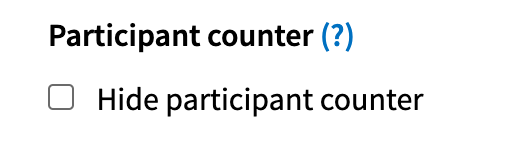
You can choose to turn off the counter which appears next to the Participants tab at the top of your screen if you wish.
Language selection
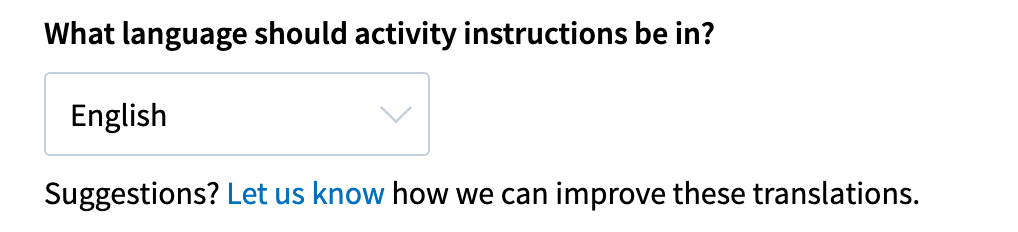
You can set the language of activity instructions to ensure your audience will understand how to respond to your activities. For more information on this feature, read the Language setting for instructions article.